

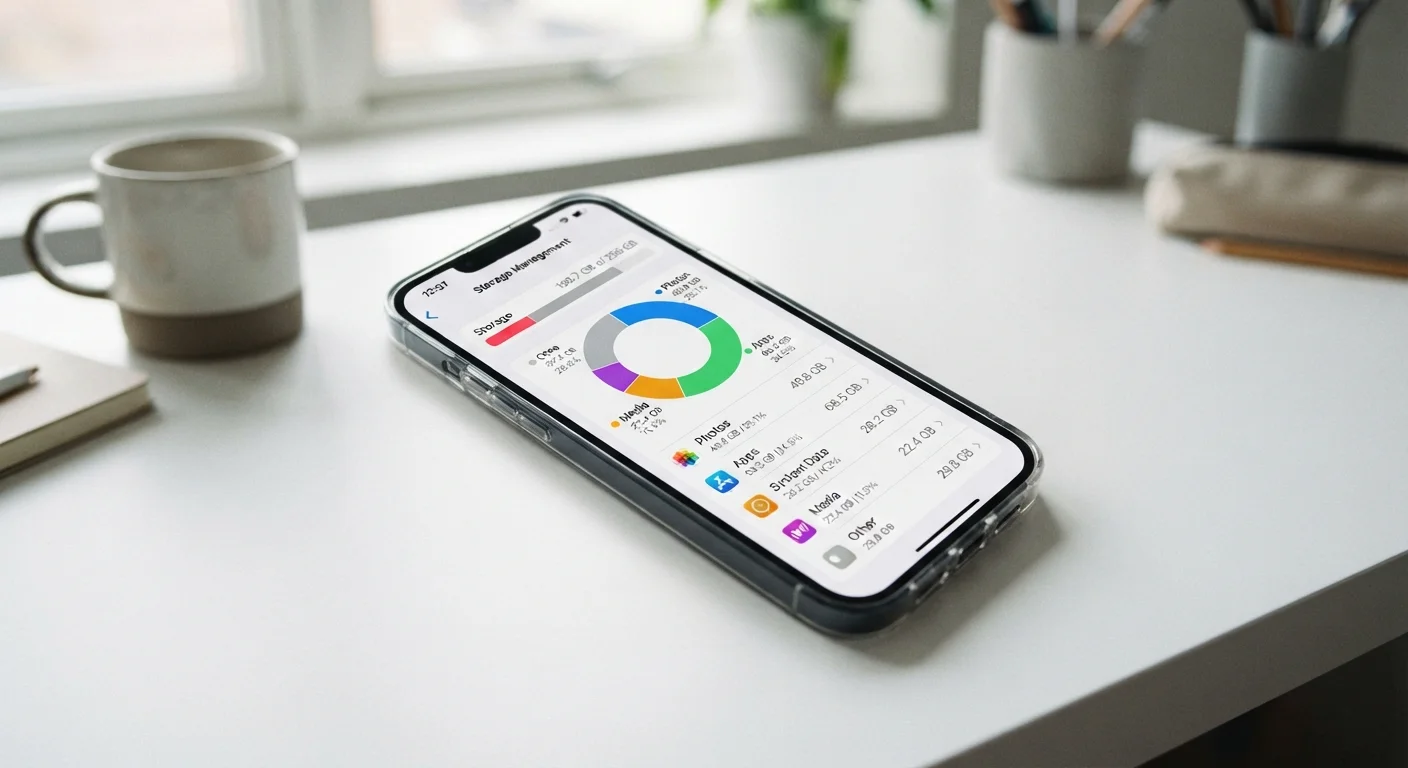
What's Actually Filling Up Your Phone
When your phone throws up a low-storage warning, the culprit is rarely one big file. Instead, space disappears gradually across several categories - and most people never look closely enough to know which ones are actually responsible.
Modern phones organize storage into a handful of major buckets:
- Apps and app data - the application itself plus any data it stores locally, such as your downloaded Spotify playlists or offline map tiles.
- App cache - temporary files apps create to load faster. Instagram, for example, caches every image you scroll past. This category can swell to several gigabytes without you downloading a single thing intentionally.
- Photos and videos - your camera roll is almost always the largest single category. A 4K video clip can run 400 MB in under two minutes of footage.
- Messages and attachments - years of texted photos, voice memos, and GIFs pile up invisibly inside your messaging apps.
- System and OS files - the operating system itself, pending software updates staged for installation, and crash logs. These are largely off-limits to the user and shouldn't be targeted for cleanup.
Understanding this breakdown matters because the right fix depends entirely on which bucket is full. Deleting a few apps when your camera roll holds 40 GB of video won't solve anything. That's why the first move is always to look at the numbers. Both Android and iOS include a native storage breakdown screen in Settings - check Settings → General → iPhone Storage on iOS or Settings → Storage on Android. This screen ranks categories by size and often offers automated recommendations. For more context on how storage habits tie into overall device health, see our guide to extending the life of your everyday gadgets.
Use Built-In Recommendations First
Both iOS and Android now surface automatic cleanup suggestions directly on the storage screen - things like deleting already-uploaded photos from iCloud, removing large attachments, or offloading unused apps. These suggestions are safe, reversible, and personalized to your actual usage patterns. Check them before doing anything manually.
Step-by-Step: Reclaiming Space Without Losing Anything Important
Work through these steps in order. The early steps are low-risk and reversible; later steps require a backup first.
What you will need
Open your phone's storage breakdown screen
On iPhone: go to Settings → General → iPhone Storage. On Android: go to Settings → Storage (exact wording varies by manufacturer). Wait a few seconds for the categories to fully load - the bar chart and ranked list will show you exactly where your gigabytes are going.
Back up your photos and videos before touching them
Before deleting any media, make sure it exists somewhere else. Options include enabling iCloud Photos or Google Photos (which can store full-resolution originals), connecting to a computer and copying your camera roll manually, or using an external drive with a compatible adapter. Only proceed to the next steps once you've confirmed your backup is complete and accessible.
Enable optimized photo storage on your device
Once your photos are safely backed up to the cloud, turn on the "Optimize iPhone Storage" option (iOS) or "Free up space" within Google Photos (Android). This replaces full-resolution local copies with smaller previews, while the originals stay safely in the cloud. This single step can recover tens of gigabytes on heavy camera users' phones.
Clear app caches for your heaviest-use apps
On Android: go to Settings → Apps, tap any app, then select Storage → Clear Cache. On iPhone: iOS doesn't expose a universal cache-clear button, but you can offload an app (iPhone Storage → [App Name] → Offload App) and reinstall it - this removes the cache while keeping your account data. Prioritize social media apps, streaming services, and navigation apps, as these typically hold the largest caches.
Delete or offload apps you haven't used recently
Return to the storage breakdown screen and sort apps by size. Look for large apps you haven't opened in months. Delete them outright if you no longer need them, or use iOS's "Offload App" feature to remove the app binary while keeping its documents and data - useful for apps you use seasonally. On Android, simply uninstall unused apps via Settings → Apps.
Clear out messaging app attachments
Open your primary messaging apps (Messages, WhatsApp, etc.) and look for storage or media management settings within each app. Many allow you to automatically delete media older than a certain period or let you browse and selectively delete large attachments. On iOS, iPhone Storage → Messages surfaces the largest attachments in a browsable list - review and delete anything you don't need to keep.
Review and delete offline downloads
Streaming apps like Spotify, Netflix, Apple Music, and Google Maps let you download content for offline use - and those downloads accumulate silently. Open each app's settings or download manager and remove offline content you no longer need. Map downloads in particular can run 1-3 GB each for a single metropolitan region.
Don't Rely on Third-Party Cleaner Apps
Apps marketed as "phone cleaners" or "junk removers" rarely deliver meaningful storage gains beyond what your phone's built-in tools already offer. Some request broad file-system permissions that pose a privacy risk. Stick to your phone's native storage management features and the steps above.
Once you've cleared space, a few habits will keep the problem from returning. Enable your cloud photo library so images upload automatically and can be stored as lower-resolution "optimized" versions on the device itself. Periodically review messaging apps - most let you auto-delete attachments older than a set period. And revisit your app list every few months; the average smartphone user has dozens of apps they haven't opened in over a year. For a broader look at the settings and routines that keep your phone running well, our article on phone maintenance habits that actually hold up is a practical companion read. If you've noticed your phone slowing down alongside the storage crunch, the two issues are often connected - here's what causes slowdowns and which fixes genuinely help.
The content on this site is for informational purposes only and is not a substitute for professional advice. Always consult a qualified professional for guidance specific to your situation.