

Hidden in Plain Sight
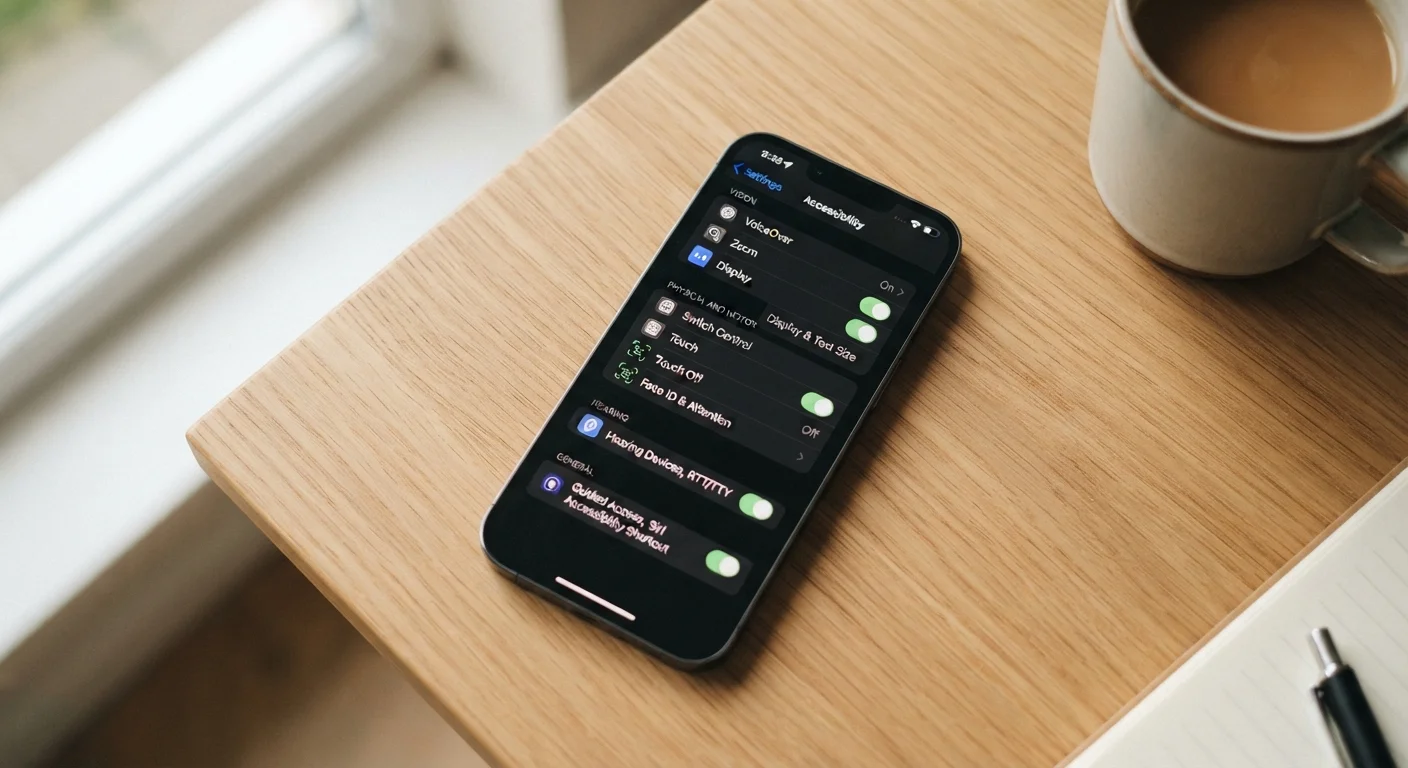
Most people treat the Accessibility section of their phone settings like a dusty drawer - it's there, but they've never opened it. That's a missed opportunity. The tools tucked into that menu were originally designed to help people with visual, hearing, motor, or cognitive differences use their devices more easily. What engineers discovered along the way is that many of these features simply make phones better for everyone.
Whether you're watching a video in a loud waiting room, squinting at tiny text after a long day, or trying to dictate a message hands-free while cooking, there's likely a built-in tool that already solves your problem - no download required. Understanding what your phone is actually capable of pairs well with understanding the hardware running it. Our guide to what smartphone specs actually mean can help you see the full picture of your device's potential.
Below are seven accessibility features worth switching on today, regardless of whether you've ever thought of yourself as someone who needs them.
Live Captions
Live Captions (called Live Captions on Android and Live Captions on iPhone 11 and later) automatically transcribe any audio playing on your phone - videos, podcasts, voice memos, even phone calls on supported devices - in real time, displayed as on-screen text. No internet connection is required on most devices because the processing happens locally.
The everyday use case is obvious: watching a video without headphones in a quiet space, or following along with a podcast at a noisy gym. But it's also genuinely useful for anyone who learns better by reading than listening, or who wants to quickly scan what a long video clip is about before committing to watching it.
Live Captions work locally on your device - no internet needed, no subscription required.
Display & Text Size Zoom
Both iOS (under Display & Text Size) and Android (under Display Size and Font) let you independently scale the overall interface size and the text size. Bumping text up one or two notches dramatically reduces eye strain during long reading sessions, without changing the app itself or requiring reading glasses nearby.
A related feature - Magnifier on iOS and Magnification on Android - turns your phone's camera into an instant magnifying glass. Point it at a restaurant menu, medication label, or small-print contract and zoom in without straining your eyes.
Scaling display text up by even one step measurably reduces eye strain during extended reading.
Voice Control
Voice Control (iOS) and Voice Access (Android) go well beyond simple voice assistants. Rather than asking a virtual assistant to do things, these tools let you control every element of your phone's interface by speaking - tapping buttons, scrolling, typing text, and navigating between apps - entirely hands-free.
This is transformative when your hands are occupied: cooking, exercising, driving (as a passenger), or holding a baby. It's more precise than a voice assistant because you're directly commanding the interface, not interpreting a natural-language request. Setup takes about five minutes and works entirely on-device.
Voice Control lets you operate your entire phone hands-free - more precise than any virtual assistant.
Sound Recognition
Available on iPhone (iOS 14 and later) and through some Android accessibility settings, Sound Recognition listens in the background for specific sounds - a smoke alarm, a doorbell, a baby crying, a dog barking, or a knock at the door - and sends you a notification when it detects one.
Originally designed to alert people who are deaf or hard of hearing, it's equally handy when you're wearing noise-canceling headphones, working in a room with the door closed, or running a loud appliance. Your phone becomes a passive ambient monitor without draining significant battery.
Sound Recognition turns your phone into a background listener for household alerts you might otherwise miss.
Reduce Motion
The animated transitions - apps zooming in and out, parallax effects on home screen wallpapers, interface elements sliding and bouncing - look polished, but they consume processing resources and can cause discomfort for people sensitive to motion. Enabling Reduce Motion (iOS) or Remove Animations (Android, within Developer Options or Accessibility) replaces most of these effects with simple fades.
The result is a noticeably snappier-feeling interface, reduced battery draw over time, and a calmer visual experience. This is one of the first settings many experienced users enable on a new phone - accessibility or not.
Reduce Motion makes your phone feel faster and calmer - a setting many power users quietly turn on first.
Guided Access and App Pinning
Guided Access (iOS) and Screen Pinning (Android) lock the phone into a single app until a passcode or fingerprint releases it. This is most commonly used to hand a phone to a child without worrying they'll navigate elsewhere, but it's also useful for presentations, kiosks, or any time you want to stay focused in one app without distraction.
Guided Access on iOS goes further: you can disable specific areas of the screen, restrict hardware buttons, and set a time limit before the session ends automatically - all without installing any third-party app.
Screen Pinning keeps your phone locked to one app - useful far beyond handing a device to a child.
Color Filters and Dark Mode Enhancements
Beyond standard Dark Mode, both platforms offer granular color display adjustments. iOS provides Color Filters that can shift the entire display's color profile - useful for reducing blue light exposure or improving readability in bright sunlight. Android offers a similar feature called Color Correction, along with a Color Inversion mode that some users find easier on the eyes in low-light environments.
These aren't just comfort features. Research consistently links prolonged exposure to high-intensity blue light from screens with disrupted sleep patterns, though the extent of the effect is still a subject of scientific discussion. Using warm color filters in evening hours is a low-effort, no-cost step worth experimenting with.
Color filter adjustments require no apps, cost nothing, and may meaningfully improve your evening screen comfort.
Making These Features Work for You
The fastest way to reach any of these tools is to search for them by name in your phone's main Settings search bar - both iOS and Android support this. Many can also be added to quick-toggle menus or activated with a shortcut (such as triple-pressing the side button on iPhone or the accessibility button on Android) so they're one tap away when you need them.
Add Shortcuts for Faster Access
On iPhone, go to Settings > Accessibility > Accessibility Shortcut to assign your most-used features to a triple-click of the side button. On Android, open Settings > Accessibility > Accessibility Button to pin a floating shortcut on your screen. Setting these up once means your go-to tools are always one tap away - no digging through menus.
Accessibility features also interact helpfully with other built-in phone systems. If you're thinking about how these tools fit into broader daily phone habits - including managing focus and screen time - our look at built-in screen time tools covers what those systems can and can't do. For a broader view of how your device fits into everyday life, the Everyday Gadgets hub is a useful starting point.
This article provides general information about smartphone features for educational purposes. Feature availability and menu locations vary by device model and operating system version. Consult your device manufacturer's support documentation for guidance specific to your phone.
The content on this site is for informational purposes only and is not a substitute for professional advice. Always consult a qualified professional for guidance specific to your situation.