

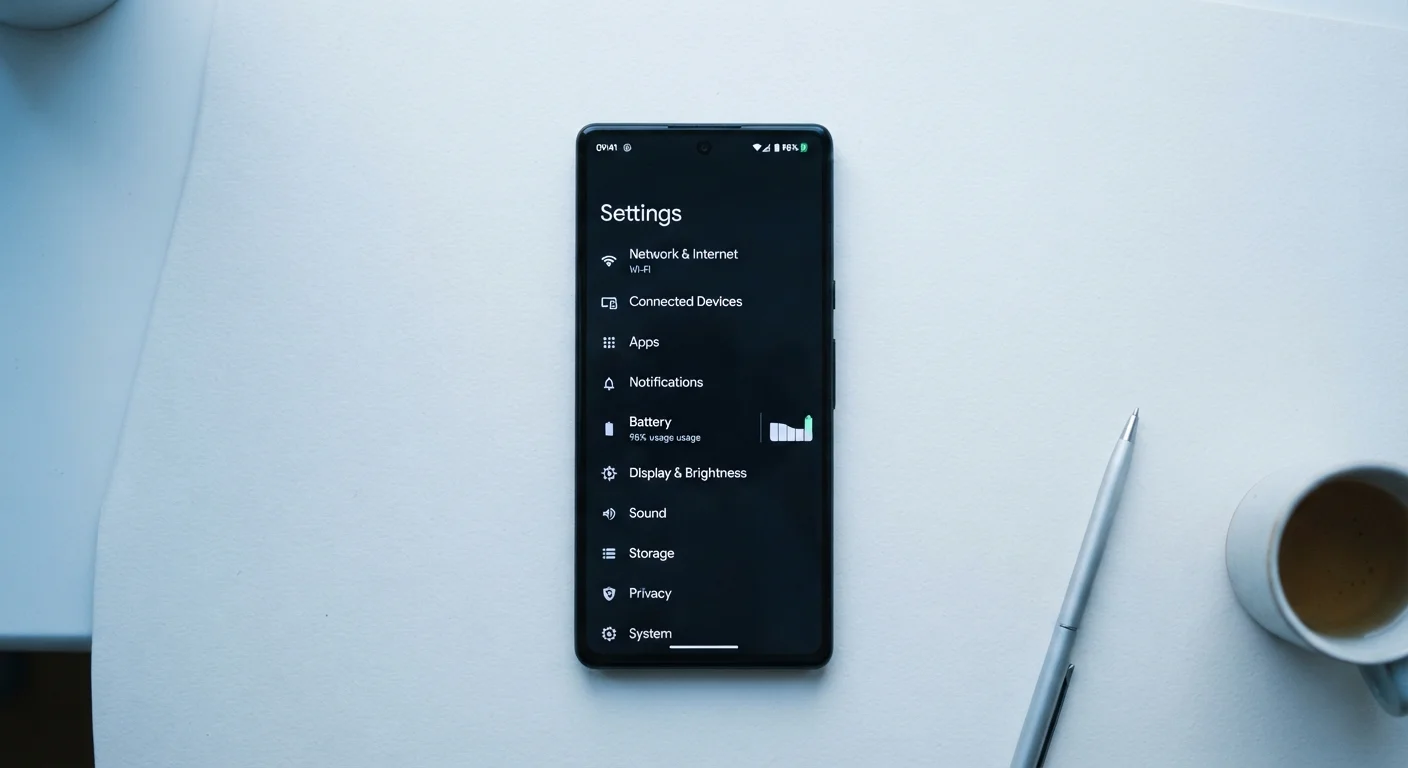
Why Settings Drain More Battery Than You'd Expect
Most people blame a dying battery on app overuse or an aging battery cell. While both are factors - see our guide to common battery myths for the full picture - the more immediate culprit is often a handful of default settings that run silently in the background, drawing power around the clock without any action from you.
Background processes like location polling, data syncing, and network scanning don't show up as obvious battery hogs because no app is visibly open. But collectively, they keep your phone's processor, antenna, and GPS hardware in near-constant low-activity states - all of which consume power. Understanding which settings control these processes gives you direct, practical control over how long your phone lasts between charges.
Use Battery Usage Reports as Your Guide
Both iOS (Settings > Battery) and Android (Settings > Battery > Battery Usage) show you a ranked breakdown of which apps consumed the most power over the past 24 hours or week. Check this list before making any changes - it tells you exactly where to focus your effort rather than guessing.
This guide walks through the six most impactful settings categories, explains what each one actually does, and shows you exactly how to adjust them. You don't need any technical background - just a few minutes and your phone's Settings app. These changes work on both iOS and Android, though specific menu paths will vary slightly.
For additional ways to keep your device running efficiently, the phone maintenance habits guide covers broader practices that complement what you'll do here.
Your smartphone
The device whose settings you'll be adjusting throughout these steps.
Phone's built-in Settings app
The central location for all battery-related configuration options on both Android and iOS.
Battery usage report (built-in)
Shows which apps and services are consuming the most power, helping you prioritize changes.
Before you begin, review what you'll need:
What you will need
How to Adjust Each Setting - Step by Step
These Steps Vary by Device and OS Version
The menu names and exact paths described below reflect general Android and iOS conventions, but they may differ depending on your phone's manufacturer, model, or software version. If a setting isn't where the guide says, use your phone's built-in search function - usually found at the top of the Settings app - and search by the setting's name.
Check your battery usage report first
Open Settings, then navigate to the Battery section. On iOS, tap Battery Usage by App. On Android, tap Battery Usage or Battery depending on your manufacturer. Review the list of apps ranked by power consumption over the last 24 hours. This tells you which specific apps deserve your attention and prevents you from making unnecessary changes.
Restrict background app refresh
On iOS, go to Settings > General > Background App Refresh. You can turn it off entirely, or set it to refresh only over Wi-Fi, which is less power-intensive than cellular. Then review the per-app list and disable it for any apps that don't need live updates - social media, shopping, and news apps are common culprits.
On Android, this is managed per-app: go to Settings > Apps, select an app, tap Battery, and choose Restricted or Optimized.
Audit and limit location services
On iOS, go to Settings > Privacy & Security > Location Services. For each app, you'll see options: Never, Ask Next Time, While Using, or Always. Change any non-essential app from Always to While Using. Also disable Precise Location for apps that don't genuinely need it - weather apps, for instance, work fine with approximate location.
On Android, go to Settings > Location > App Permissions and apply the same logic.
Lower screen brightness and shorten screen timeout
The display is typically the single largest consumer of battery power. Enable Auto-Brightness (iOS: Settings > Accessibility > Display & Text Size; Android: Settings > Display > Adaptive Brightness) so the screen dims automatically in low-light environments.
Then reduce your Screen Timeout - the period of inactivity before the screen turns off automatically. Setting it to 30 seconds or 1 minute instead of 5 minutes meaningfully reduces passive drain throughout the day.
Adjust email fetch frequency
If your email is set to Push, your phone maintains a constant connection to the mail server, keeping the antenna active. Switching to Fetch on a 15- or 30-minute schedule, or even Manually, reduces this drain significantly.
On iOS, find this under Settings > Mail > Accounts > Fetch New Data. On Android, this option is typically inside the email or Gmail app's account settings under Sync frequency.
Disable Wi-Fi and Bluetooth scanning when not in use
Even when you're not connected to a network, your phone may be continuously scanning for available Wi-Fi networks and Bluetooth devices. On Android, go to Settings > Location > Wi-Fi and Bluetooth Scanning and toggle both off. On iOS, this scanning is more tightly integrated, but turning off Wi-Fi and Bluetooth entirely from Settings (not just Control Center, which only disconnects temporarily) stops active scanning.
If you rarely use Bluetooth accessories or move between networks frequently, this is a low-effort change with consistent battery gains.
Once you've worked through these steps, monitor your battery usage report again after 24-48 hours. Most people see a measurable improvement after addressing location services and background refresh alone. If your phone continues to drain faster than expected, the issue may relate to the battery cell itself - our article on why phones slow down over time explores how aging hardware plays into performance and battery behavior.
Don't Disable Location for Safety Apps
Restricting location access is effective for battery savings, but be cautious with apps like emergency services, navigation, and health monitors. Removing location access from these apps could affect their core safety functionality. Review each app individually rather than using a blanket 'Deny All' approach.
Traveling soon? Be aware that roaming and international data connections are particularly power-hungry. The guide to staying connected abroad explains how to configure your phone to avoid both battery and bill surprises. And if you find your phone also charges slowly after making these changes, check the common charging culprits before assuming the battery needs replacement.
The content on this site is for informational purposes only and is not a substitute for professional advice. Always consult a qualified professional for guidance specific to your situation.