

Our Verdict
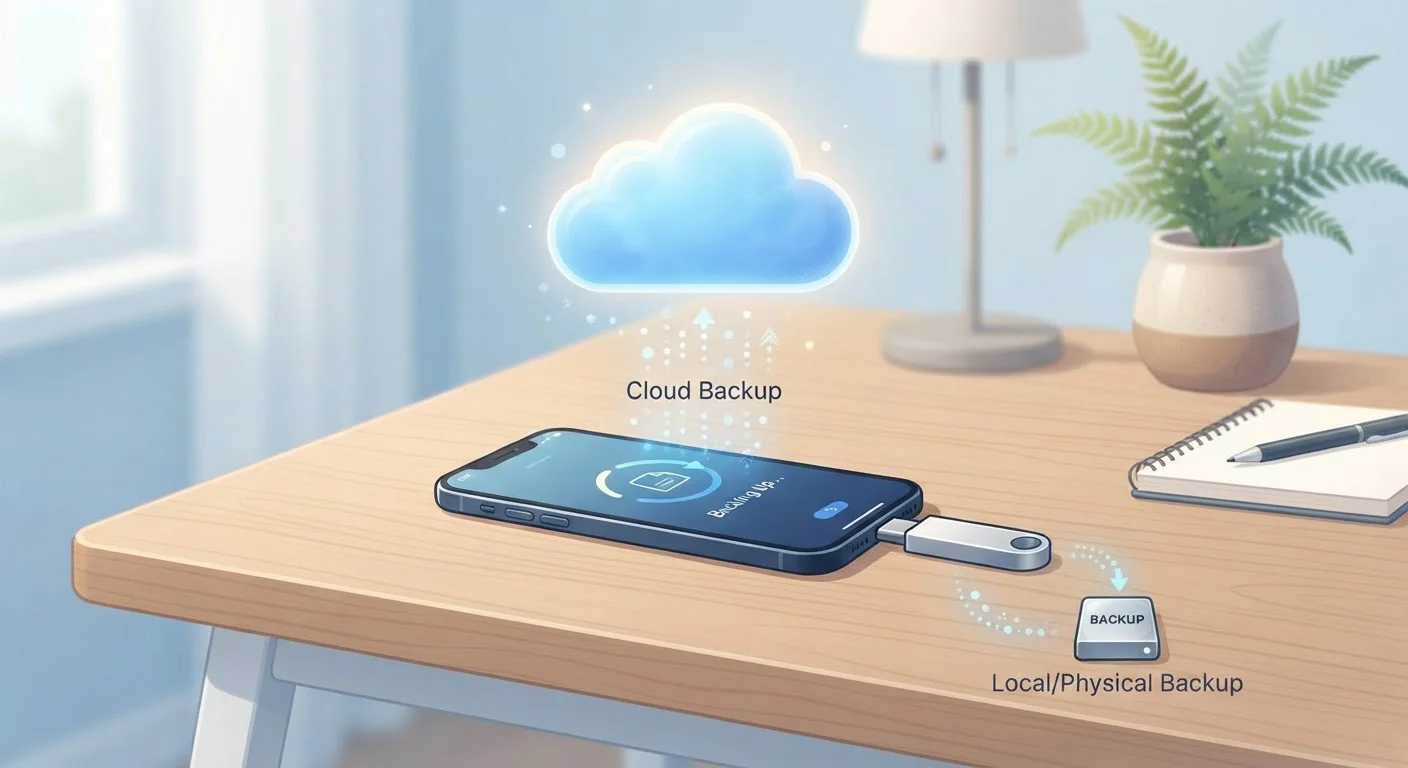
Cloud backup excels for everyday convenience, automatic syncing, and recovering data after a lost or damaged phone. Local backup wins on privacy, one-time cost, and speed for full-device restores. For most people, a hybrid approach - routine cloud syncing supplemented by periodic local backups - offers the strongest safety net.
| Best for | Recommended |
|---|---|
| Those who want hands-off, automatic protection | Cloud Backup |
| Privacy-focused users who want data off third-party servers | Local Backup |
| Anyone switching phones or doing full device restores | Local Backup |
| Users who need access to files across multiple devices | Cloud Backup |
How Each Backup Method Actually Works
Before comparing the two approaches, it helps to understand what each one does under the hood.
Cloud backup copies your phone's data - photos, contacts, app settings, messages - to remote servers operated by a company such as your device's platform provider. This typically happens automatically over Wi-Fi in the background. Because the data lives on external servers, you can restore it to any compatible device, anywhere.
Local backup saves a copy of your phone's data directly to a physical device you own: a computer, an external hard drive, or a USB drive. On Android, this is often done through desktop software or manual file transfers. On iPhone, iTunes (or Finder on macOS Catalina and later) handles the process. The data never leaves your possession.
If you're already concerned about how much space your phone is using before setting up a backup routine, see our guide on what's eating up phone storage and how to reclaim it.
Comparing the Two Approaches Side by Side
The table below breaks down how cloud and local backup differ across the criteria that matter most to everyday users.
| Cloud Backup | Local Backup | |
|---|---|---|
| Setup effort | Minimal - usually on by default | Requires software and manual steps |
| Ongoing cost | Subscription after free tier | One-time hardware cost only |
| Automation | Runs automatically in background | Requires manual initiation |
| Privacy exposure | Data stored on provider's servers | Data stays on your own hardware |
| Restore speed | Slower - depends on internet speed | Faster - direct transfer via cable |
| Access without the phone | Accessible from any device | Requires the storage device on hand |
| Risk of data loss | Low if subscription is active | Risk if drive fails or backup skipped |
| Storage capacity flexibility | Scalable with subscription tier | Limited to physical drive capacity |
No single column dominates across every row - which is why understanding your own priorities matters more than chasing a one-size-fits-all answer.
Privacy and Security Considerations
Cloud backup introduces a third party into the equation. Your data is encrypted in transit and at rest by reputable providers, but it still resides on servers you don't control. That means it is subject to the provider's data policies, potential government access requests, and - in worst-case scenarios - corporate data breaches.
Local backup keeps data entirely within your home network and hardware. If your computer is encrypted and physically secure, no outside party can access your backup without physically obtaining that device.
Cloud Backup Doesn't Mean Unlimited Privacy
Even well-encrypted cloud storage is subject to each provider's terms of service and applicable law. If you store sensitive documents, financial records, or private communications on your phone, review your cloud provider's privacy policy before assuming complete confidentiality. For the highest level of data control, local backup with device encryption is the more private option.
For a deeper look at how phones collect and share data more broadly, the article mobile privacy, data collection, and your options provides practical context.
Cost, Convenience, and Reliability
Cloud storage beyond the free tier - typically 5-15 GB depending on platform - requires a monthly or annual subscription. For users with large photo libraries or lots of app data, those costs can add up over time.
Local backup has no recurring cost once you own the storage hardware. However, it demands intentionality: you have to remember to plug in your phone or run the software. Forget for several months, and you may lose weeks of data in an emergency.
Cloud backups have a reliability edge for most households because they happen automatically. The trade-off is that a slow or limited data plan can delay backups, and a lapsed subscription may result in older backups being deleted.
Verify Your Backup Before You Need It
A backup you've never tested is an assumption, not a safety net. Periodically check your cloud backup's last-completed date in your phone's settings, and consider doing a test restore of a single photo or contact from a local backup. Discovering a failed backup during an emergency is far more stressful than a quick routine check now.
If you're planning to switch phones soon, a current, complete backup is non-negotiable. Our step-by-step phone transfer checklist walks through exactly what to back up before handing off your old device.
Building a Strategy That Works for You
The most resilient backup strategy combines both methods - often called the 3-2-1 rule: keep three copies of your data, on two different media types, with one copy stored off-site (i.e., in the cloud). For most households, this translates to cloud auto-backup running daily and a local backup performed monthly to a home computer or external drive.
Security-conscious users should also consider how backups intersect with broader phone hygiene. The guide mobile security for non-technical users covers complementary practices like encryption settings and account security that protect your backup data as much as the backup method itself.
- Set cloud backup to run on Wi-Fi only to avoid using mobile data.
- Encrypt local backups - especially iPhone backups in Finder/iTunes - so that a stolen computer doesn't mean stolen data.
- Check that backups are actually completing by verifying the last backup date in your phone's settings periodically.
- Store local backups on more than one physical drive if you rely on them heavily; hard drives can fail.
The content on this site is for informational purposes only and is not a substitute for professional advice. Always consult a qualified professional for guidance specific to your situation.