

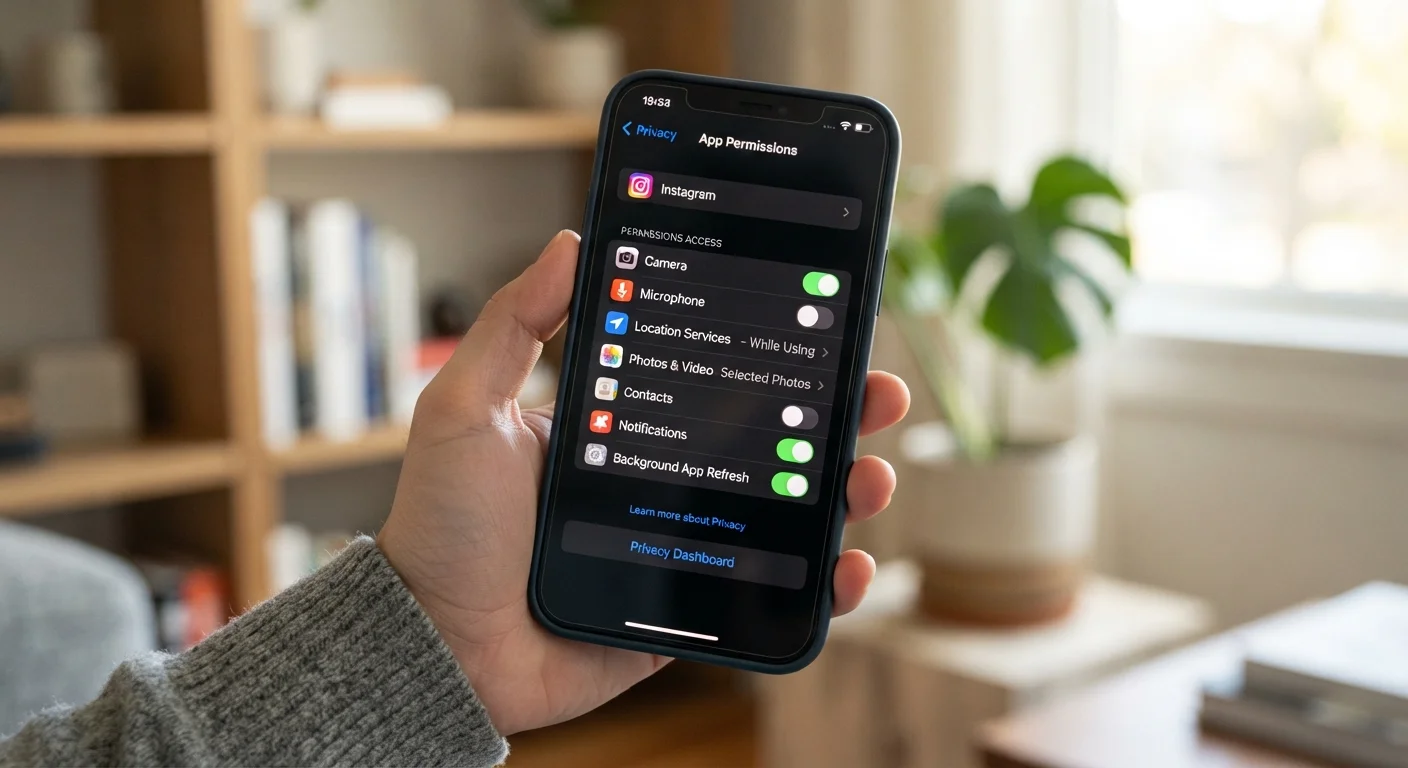
How Mobile Data Collection Actually Works
Your smartphone collects data through several distinct channels, and understanding them helps you make better decisions about which to allow. The main pathways are: explicit permissions you grant to apps, passive signals from built-in sensors, identifiers embedded in the device or its software, and third-party software libraries that developers include inside their apps.
When you install an app and it asks to access your contacts or camera, that is an explicit permission request. But data also flows in less obvious ways. Advertising frameworks - bundles of code from analytics or ad companies that developers embed in their apps - can collect behavioral data like how long you spend on a screen or what you tap, often independently of the app's own stated purpose.
Device identifiers play a central role. Every phone has an advertising ID (called IDFA on iPhone and GAID on Android), a resettable code that ad networks use to link your behavior across multiple apps. Separate from that, network-level data such as your IP address can roughly indicate your location even without GPS access being granted.
87%
Apps that share data with third parties
Research from the AppCensus project found that the majority of popular Android apps transmit data to at least one third-party domain.
~80
Average number of apps on a US smartphone
Industry analytics consistently show US smartphone owners have dozens of installed apps, each a potential data-collection point.
For a broader look at how connected devices in your home gather data through similar mechanisms, see our guide on smart home privacy.
The Permission System Explained
Both iOS and Android use a runtime permission model, meaning apps must request access to sensitive capabilities at the moment they need them, rather than receiving blanket access at install time. This is a meaningful privacy protection - but only if you pay attention to the requests.
On iOS, permissions are categorized into groups like Location, Contacts, Photos, Microphone, and Camera. You can grant access as Always, While Using the App, or Never. The While Using option is important for location: it prevents an app from tracking your movements when you are not actively using it.
Android works similarly, with a Permission Manager accessible from Settings. Starting with Android 12, the system can auto-reset permissions for apps you haven't used in months - a useful backstop. Both platforms also allow you to grant access to only a selected portion of your photos rather than your entire library, a newer feature worth using.
Check Your Permissions Right Now
You don't need to wait for a security incident to act. Open your phone's privacy settings today and look specifically at which apps have "Always" location access and microphone access. Switching even a few of these to more restrictive settings takes under five minutes and provides an immediate privacy benefit.
To audit what you've already approved: on iPhone, go to Settings → Privacy & Security; on Android, go to Settings → Privacy → Permission Manager. Reviewing this list periodically - especially after installing new apps - is one of the most effective habits you can build.
High-Risk Permissions Worth Scrutinizing
Not all permissions carry equal risk. Some expose a large surface area of personal information:
- Location (Precise vs. Approximate): Precise GPS data can reveal home address, work location, religious attendance, medical visits, and more. Many apps function perfectly with approximate location - a setting both iOS and Android now offer. Grant precise location only when genuinely necessary.
- Microphone: Granting microphone access to an app that has no audio function is a red flag. While major platforms have security rules limiting background microphone use, it is good practice to restrict this to apps with a clear audio purpose.
- Camera: Similarly, camera access should be limited to apps that require it functionally. Both iOS and Android show an indicator light when the camera or microphone is actively in use.
- Contacts: Sharing your contact list hands over data about other people who haven't consented to share their information with that app.
- Bluetooth: Newer permission models require apps to explicitly request Bluetooth access, which can also be used for location inference via nearby device signals.
When in doubt about a permission request, deny it first and see if the app's core function still works - you can always grant access later if the feature truly requires it.
Apps are incentivized to request broad permissions upfront; most do not break core functionality when optional requests are declined.
Set a quarterly reminder to open your Permission Manager and audit any apps added since your last review, especially those from smaller developers.
Periodic audits catch permission creep - permissions granted during onboarding and then forgotten - which is one of the most common sources of unintentional data exposure.
Practical Steps to Limit Your Exposure
Privacy on a smartphone is a set of layered practices, not a single toggle. Here are the most impactful actions to take:
- Reset or limit your advertising ID. On iPhone, go to Settings → Privacy & Security → Tracking and disable Allow Apps to Request to Track. On Android, go to Settings → Privacy → Ads and select Delete advertising ID. This severs the thread that lets ad networks follow you across apps.
- Use "While Using" for location permissions wherever possible instead of "Always."
- Uninstall apps you no longer use. Dormant apps can still hold permissions and receive background updates.
- Review app privacy labels. Both the App Store and Google Play now show data-practice summaries on app listing pages - check these before installing.
- Keep your OS updated. Security patches close vulnerabilities that could allow unauthorized data access regardless of your permission settings.
Your backup approach also has privacy implications. Storing everything automatically in a cloud service means that provider has access to your data; local backups keep copies off third-party servers but require your own safeguards. See our cloud vs. local backup comparison for a full breakdown of the trade-offs.
OS Updates Are Not Optional for Privacy
Security vulnerabilities in older operating system versions can allow malicious apps or websites to access device data without permission dialogs at all. Keeping your phone's OS current is a foundational step - permission settings and ad-tracking controls only protect you fully on a patched system. If your device no longer receives security updates, the privacy risk is substantially elevated regardless of your settings.
Privacy Beyond Permissions: What Else to Know
Permissions are the most accessible lever, but mobile privacy extends further. Browser choice and behavior on your phone matters: browsers that block third-party trackers by default offer more protection than those that don't. Similarly, using a private DNS service can prevent your internet provider from logging every site you visit.
App privacy policies, while often lengthy, typically describe what data is collected and with whom it is shared. Summary tools and the platform-level nutrition labels make these more scannable than they used to be.
It is also worth understanding that no configuration eliminates all data collection. Cellular carriers log call metadata, operating system vendors receive diagnostic data, and Wi-Fi networks log connection activity. The realistic goal is meaningful reduction of exposure, not perfect invisibility.
Privacy Labels Are Voluntary Summaries
App Store and Google Play privacy nutrition labels are self-reported by developers and are not independently verified by Apple or Google in real time. They are a useful starting signal but should not be treated as a certification of privacy practices. Cross-referencing with independent app-audit resources can provide additional assurance for apps you use frequently.
Finally, some built-in phone features touch on privacy in ways people overlook. Voice assistants, accessibility services, and keyboard apps all process sensitive input. Our article on phone accessibility features covers how these tools work, which helps you weigh their data trade-offs more clearly.
The content on this site is for informational purposes only and is not a substitute for professional advice. Always consult a qualified professional for guidance specific to your situation.